

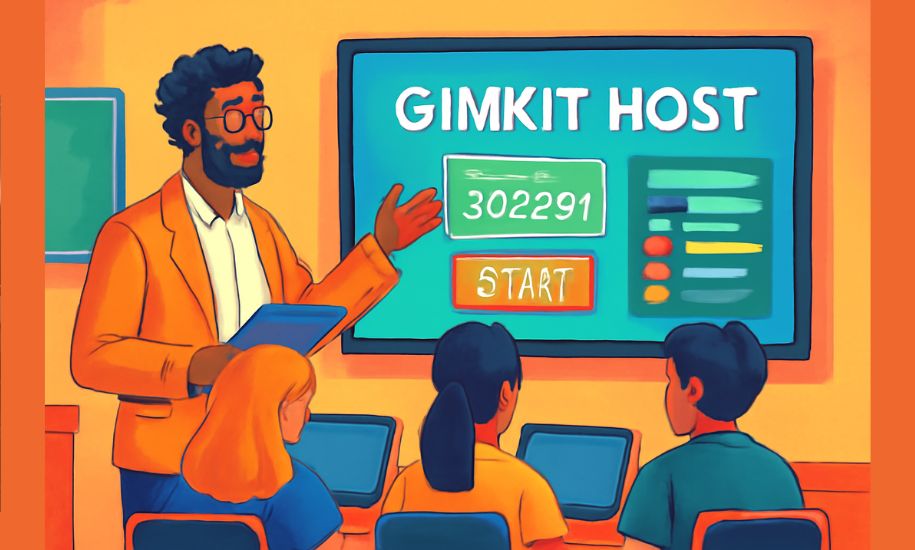
Digital learning has changed the face of modern education, introducing dynamic tools that make lessons more interactive, enjoyable, and memorable. Among these tools, Gimkit stands out as one of the most innovative gamified learning platforms—offering fast-paced quizzes, collaborative modes, in-game currencies, power-ups, and immersive 2D experiences. Yet behind every successful Gimkit session is a crucial element: the host.
The Gimkit host—typically the teacher, trainer, or facilitator—plays the role of game manager, experience designer, and engagement strategist all at once. Whether you’re preparing your first Gimkit session or looking to elevate your classroom game hosting, understanding the full power of Gimkit’s hosting tools is essential.
This comprehensive guide dives deep into everything a Gimkit host needs to know: setup, game modes, best practices, optimization tips, troubleshooting, and strategies to turn every hosted session into a high-impact learning experience.
What Does It Mean to Be a Gimkit Host?
In Gimkit, hosting means launching and managing a live or asynchronous game, where players—usually students—join via a link or code. But hosting goes beyond clicking “Start.” The host controls the pace, mode, options, environment, engagement, and learning outcomes of the entire session.
A Gimkit host is responsible for:
- Selecting or creating the kit (the question set)
- Choosing the appropriate game mode
- Configuring game rules and conditions
- Managing players and monitoring progress
- Ending the game strategically and reviewing data
- Ensuring both fun and educational value
Essentially, hosting on Gimkit is not just running a game—it’s orchestrating a learning experience.
Why Hosting Matters: The Power of Gamified Learning
For a student, Gimkit feels like a fast-paced game. For teachers, it’s an advanced engagement tool backed by data and customization.
💡 1. High Engagement Levels
Students don’t just answer questions—they compete, collaborate, earn in-game currency, and strategize. This keeps attention high and encourages active participation, even among reluctant learners.
💡 2. Real-Time Learning Feedback
A Gimkit host can see:
- Most-missed questions
- Student accuracy
- Performance trends
- Time spent answering
- Overall class understanding
This allows instant reteaching or course correction.
💡 3. Customizable Learning Environment
Hosting tools allow you to adjust:
- Win conditions
- Power-ups
- Time limits
- Late joining
- Nickname control
- Question pace
These customizations create the perfect balance between fun and learning.
💡 4. Collaborative and Interactive Modes
Many Gimkit modes push teamwork rather than individual competition—ideal for classroom rapport and group learning.
💡 5. Builds Motivation Through Game Mechanics
The in-game currency and power-ups add an element of strategy that makes learning feel more like gaming—not testing.
How to Host a Live Game on Gimkit: Step-by-Step Guide
If you’re a first-time Gimkit host, this walkthrough covers everything, from setup to completion.
Step 1: Choose or Create Your Kit
A kit is the cornerstone of any Gimkit game. You can:
- Create your own question set
- Import from Quizlet
- Copy public kits
- Use KitCollab (students create questions)
When selecting a kit, make sure the content aligns with your learning goal—review, comprehension check, warm-up, or test prep.
Step 2: Select a Game Mode
Game modes are where Gimkit truly shines. As a host, you choose the mode that best fits your objective.
Popular modes include:
Classic Mode
- Traditional question-answer gameplay
- Students earn money per correct answer
- Power-ups available
Great for quick reviews.
2D Game Modes
These are immersive experiences where students move characters around a digital map.
Examples include:
- Tag: Domination
- Fishtopia
- Farmchain
- Cosmic Clash
These modes emphasize strategy, exploration, and collaboration.
Team Modes
Students work together toward a shared victory. This is excellent for building cooperative learning environments.
Time or Goal-Based Modes
- First to a money goal
- Highest score before time runs out
These keep gameplay structured and predictable.
Step 3: Configure Game Options
As a Gimkit host, you have a panel of settings to tailor the game:
- Player limits
- Lobby music
- Nickname generator
- Late join option
- Time limits
- Goal settings (cash, tasks, points)
- Non-player characters or bots (if available)
- Two-team or multi-team setups
Fine-tune these depending on your class size and game purpose.
Step 4: Launch the Game
Click “Play Live” on the kit page. A lobby screen generates:
- Join code
- Join link
- QR code
Students go to gimkit.com/join and enter the code.
You can monitor players joining in real-time—useful for ensuring everyone is connected and ready.
Once players are in, click Start Game.
Step 5: Manage Players and Monitor Gameplay
A Gimkit host can monitor:
- Player accuracy
- Total earnings
- Leaderboards
- Game progress
- Time remaining
- Students who may be struggling
You also have administrative controls:
- Remove inappropriate nicknames
- Adjust volume or visuals
- Pause gameplay
- Extend time (in some modes)
- Redirect attention during mini-lessons
Hosting is active—not passive.
Step 6: Ending the Game
Games end automatically based on win conditions OR when you choose to manually end the game.
After ending:
- Show the leaderboard
- Review class performance together
- Celebrate victories
- Reflect on difficult questions
- Transition into reteaching or discussion
Ending the game at the right moment can maximize learning.
Hosting Assignments: Asynchronous Gimkit Hosting
If you want students to complete a game independently (e.g., homework or remote learning), you can host an assignment instead of a live game.
In this mode:
- Students play at their own pace
- Questions cycle automatically
- There is no real-time competition
- Reports still generate detailed analytics
Assignments are ideal for:
- Flipped classrooms
- Homework review
- Makeup work
- Independent learning
Best Practices for Every Gimkit Host
To elevate your sessions from good to exceptional, here are proven hosting strategies.
1. Start with Clear Goals
Are you aiming for:
- Fun?
- Reinforcement?
- Assessment?
- Warm-up or cool-down?
Choose kits and modes that reinforce your objective.
2. Balance Difficulty
Too easy = boredom.
Too hard = frustration.
Mix easy, medium, and challenging questions.
3. Use Nickname Control
To avoid inappropriate student nicknames, enable:
- Nickname Generator
- or Host Approval Mode
4. Keep Games Time-Bound
Ideal durations:
- Quick review: 5–7 minutes
- Full practice: 10–15 minutes
- 2D exploration: 12–20 minutes
Longer sessions risk losing focus.
5. Limit Overpowered Game Settings
For example:
- Set reasonable in-game cash goals
- Avoid extremely high power-up boosts
- Keep pace fast but manageable
6. Use Game Reports Effectively
Post-game reports reveal:
- Most-missed questions
- Player performance
- Knowledge gaps
- Topic mastery
These insights help guide your next lesson.
7. Encourage Collaboration in Team Modes
Team modes are powerful for:
- Reducing pressure
- Strengthening class community
- Equalizing participation
8. Rotate Modes for Variety
Avoid using the same mode repeatedly.
Variety builds excitement and anticipation.
Common Mistakes Gimkit Hosts Should Avoid
Even experienced hosts sometimes struggle. Watch out for these pitfalls:
❌ Hosting too long
Game fatigue reduces effectiveness.
❌ Unchecked nicknames
Can lead to distractions.
❌ Mismatched difficulty levels
Discourages learners.
❌ Overcomplicating settings
Simple options often deliver the best learning.
❌ Ignoring player reports
You miss out on valuable feedback.
Advanced Hosting Strategies for Power Users
If you’re comfortable with the basics, try these advanced techniques.
1. Use KitCollab Before Hosting
Let students build questions together before playing.
Benefits:
- Ownership
- Engagement
- Creativity
- Deeper thinking
2. Host “Tournament Days”
Use multiple Gimkit modes back-to-back with cumulative scoring.
Great for:
- Review days
- End of unit celebrations
- Competency-based learning
3. Pair Gimkit With Mini-Lessons
Example hosting flow:
- Play 3 minutes
- Pause for instruction
- Resume
- End with reflection
This makes learning active and dynamic.
4. Leverage 2D Modes for Strategy-Based Competitions
Modes like Fishtopia or Tag: Domination enhance critical thinking and teamwork.
5. Use Assignments for Test Prep
Students can complete multiple kits independently—ideal for exams.
Troubleshooting Tips for Gimkit Hosts
A few issues hosts commonly face:
⚠️ Slow connections
Ask players to
- Use stable Wi-Fi
- Close other tabs
- Avoid mobile hotspots
⚠️ Players can’t join
Ensure:
- Game is live
- Correct code is displayed
- Browser is updated
⚠️ Audio/visual glitches
Turn off background music
OR
Reduce device load by closing apps.
⚠️ Too few devices
Use team modes to reduce the number of device connections.
The Future of Gimkit Hosting
Gimkit is evolving fast—adding 2D maps, creative modes, improved analytics, and more customization. The role of the Gimkit host will only become more important as education continues blending gameplay with personalized learning.
The classrooms of tomorrow will need hosts who understand not only how to start a game but how to guide an interactive learning ecosystem.
Final Thoughts
Being a Gimkit host is more than managing a digital quiz—it’s about bringing energy, creativity, and strategic planning into the classroom. With thoughtful hosting, Gimkit becomes a powerful tool that boosts engagement, improves comprehension, and transforms learning from passive to interactive.
If you’re ready to take your Gimkit hosting to the next level, use the strategies, insights, and best practices in this guide to shape unforgettable learning moments.
Thank you for reading this guide on Gimkit Host, proudly presented for publication on Buz Vista.